
Disney Plus has become one of the most popular streaming platforms, offering exclusive movies and TV shows from Disney, Marvel, Pixar, Star Wars, and National Geographic. While streaming is convenient, many users prefer downloading Disney Plus movies so they can watch offline, avoid buffering, or keep content available while traveling.
In this guide, we’ll explain how to download Disney Plus movies on Mac or Windows, what devices are supported, the limitations of Disney Plus downloads, and how you can download Disney Plus movies on Windows or Mac if you need more flexibility.
Part 1. Can You Download Movies on Disney Plus?
Yes, Disney Plus allows users to download movies and TV shows—but only under certain conditions.
The official download feature is available only through the Disney Plus mobile app. This means you can download content on supported smartphones and tablets, but not on desktop computers or web browsers.
If you’re wondering why the download option doesn’t appear on your computer, don’t worry—we’ll explain that later in this article.
Part 2. How to Download Movies on Disney Plus Using the Official App
Downloading movies through the Disney Plus app is simple and works well for short-term offline viewing.
Steps to download Disney Plus movies:
Step 1. Install the Disney Plus app on your iPhone, iPad, or Android device.
Step 2. Open the app and sign in to your Disney Plus account.
Step 3. Search for the movie or TV show you want to download.
Step 4. Tap the “Download” button below the title.
Step 5. Wait for the download to complete, then access it from the “Downloads” section.
Once downloaded, you can watch the movie without an internet connection.
Part 3. Devices That Support Disney Plus Downloads
Disney Plus officially supports downloads on:
- iPhones and iPads (iOS)
- Android phones and tablets
- Amazon Fire tablets
However, downloads are not supported on:
- Windows computers
- Mac computers
- Smart TVs
- Game consoles
- Web browsers (Chrome, Safari, Edge)
This is one of the biggest frustrations for users who want to watch Disney Plus offline on a laptop.
Limitations of Disney Plus Downloads
While the official download feature is useful, it comes with several restrictions:
1. Downloads Expire
Downloaded movies don’t last forever. Disney Plus downloads may expire after a certain period, especially if you don’t reconnect to the internet regularly.
2. Playback Is App-Only
Downloaded content can only be played inside the Disney Plus app. You can’t open the files with a media player or transfer them to another device.
3. No Computer Downloads
There is no official way to download Disney Plus movies on Windows or macOS.
4. Subscription Dependency
If your Disney Plus subscription ends, your downloaded movies will stop working—even if they’re already on your device.
Because of these limitations, many users look for an alternative way to download Disney Plus movies.
Part 4. Why Disney Plus Doesn’t Allow Downloads on Computers
Disney Plus restricts downloads on computers mainly due to DRM (Digital Rights Management). DRM is designed to prevent copying, sharing, or redistributing copyrighted content.
By limiting downloads to mobile apps, Disney Plus maintains tighter control over how content is stored and accessed. Unfortunately, this also means users lose flexibility when they want to watch offline on a laptop or keep downloads permanently.
Part 5. How to Download Disney Plus Movies on Windows and Mac
If you want to download Disney Plus movies on a computer, a third-party Disney Plus downloader such as Keeprix Video Downloader is a practical solution.
These tools are designed to work with streaming platforms and allow you to save videos locally on your computer.
What a desktop Disney Plus downloader can do:
- Download Disney Plus movies and TV shows on Windows and macOS
- Save videos in common formats like MP4 or MKV
- Remove download expiration limits
- Allow offline playback without the Disney Plus app
- Preserve high video quality
Steps to Download Disney Plus Movies Using a Desktop Downloader
Here’s how the process typically works:
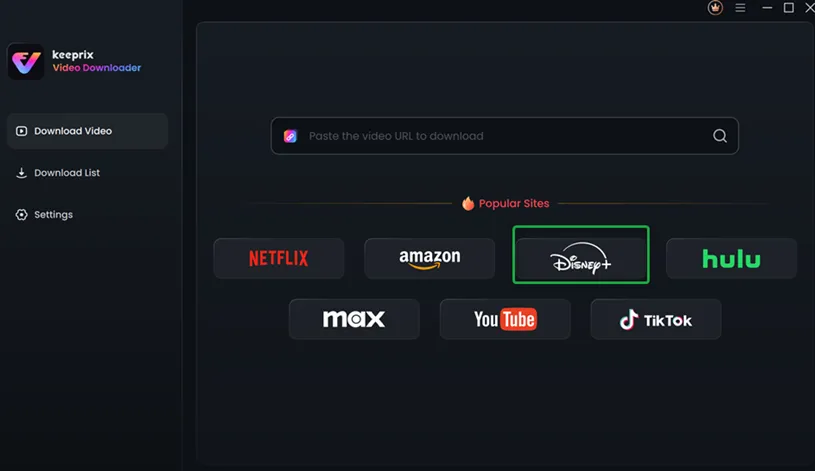
1. Download and install Keeprix Video Downloader on your Windows or Mac computer.
2. Launch the software and choose Disney Plus from the supported platforms.
- Log in to your Disney Plus account through the built-in browser.
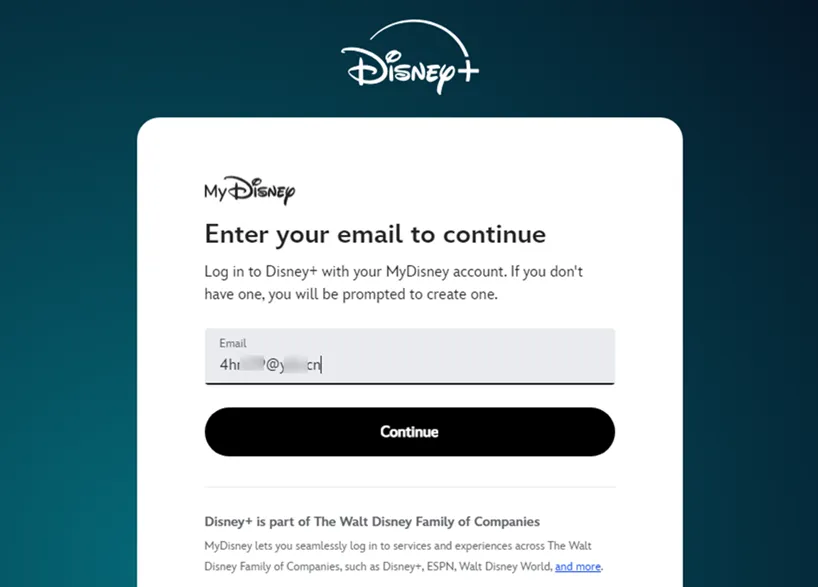
4. Search for the movie or TV show you want to download.
5. Select video quality, audio language, and subtitle options.
6. Start the download and wait for it to finish.
After downloading, the movie is saved directly to your computer and can be watched anytime, even without an internet connection.
Frequently Asked Questions
Q1. Can I download Disney Plus movies on a laptop?
Not officially. Disney Plus does not support downloads on laptops. You’ll need a third-party tool to do this.
Q2. Do Disney Plus downloads expire?
Yes. Official downloads can expire or become unavailable if your subscription ends.
Q3. Can I transfer Disney Plus downloads to USB or external storage?
Official app downloads cannot be transferred. Videos downloaded using desktop tools can be moved freely.
Final Verdict
If you only need temporary offline viewing on your phone or tablet, the Disney Plus app is enough. However, if you want to download Disney Plus movies on a computer, avoid expiration limits, or watch content offline without restrictions, a desktop downloader offers a much more flexible solution.

I’m Leo Knox, the wordplay wizard behind WordsTwists.com where I turn everyday meanings into funny, clever, and creative twists. If you’re tired of saying things the boring way, I’ve got a better (and funnier) one for you!

